


How to set capacity, booking and cancellation rules for a dance class
Every class can have its own booking rules: how many places, how late students can book or cancel, who must pay and how attendance is recorded. Here is what each setting does.

Clear booking rules prevent overcrowded studios and last-minute no-shows. In Stepsi you set them per class, so a drop-in salsa class and a graded ballet class can work differently.
1. Turn on bookings
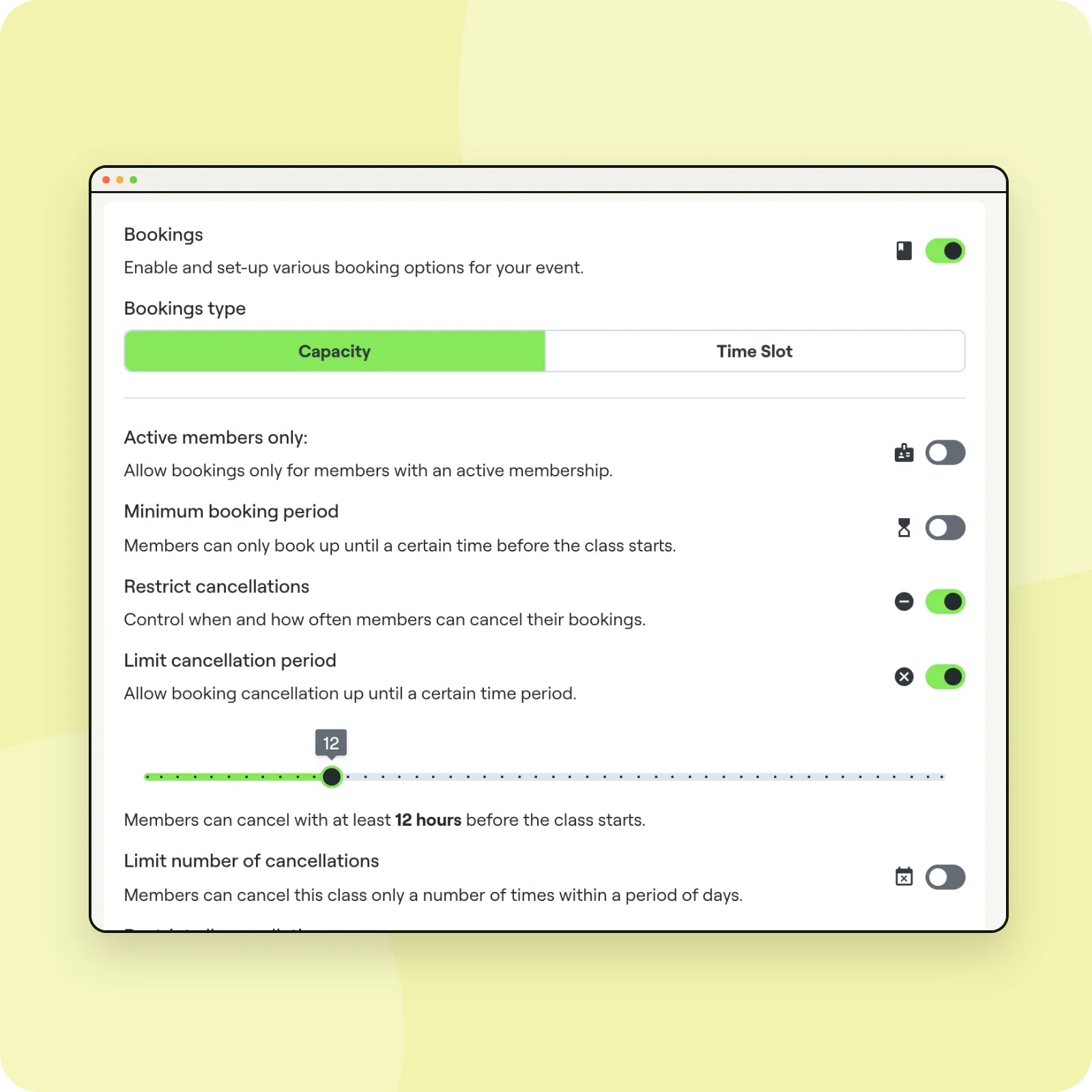
Open the class in Calendar, go to the Payments tab and set the Class capacity. Switch on Bookings and choose the Bookings type: Capacity for a normal class, or Time Slot for private lessons booked in slots.
2. Decide who can book and when
- Active members only limits bookings to students with an active membership.
- Minimum booking period stops bookings a set number of hours before class.
- Allow unapproved members lets new sign-ups book before you approve them.
3. Set your cancellation policy
Turn on Restrict cancellations, then choose Limit cancellation period (for example up to 12 hours before), Limit number of cancellations in a period of days, or Restrict all cancellations so only you can cancel.
4. Payment and check-in
Mandatory payment makes everyone pay to book; by default only students without an active membership pay. Enable payment at the location lets students pay at the studio. Check-In Automatically marks booked students as attended at the end of the day if nobody checked them in.
Discourage no-shows
Turn on Enable bookings penalties in Account > Mobile App. Students get a strike when they miss a booked class, and you can limit their bookings from their profile.
Rules that run themselves
Once set, Stepsi applies the rules every time a student books or cancels, so the front desk never has to argue a policy.
Frequently asked questions
What happens when a class is full?
Students can join the waiting list and are told when a place opens. See the waiting list tutorial.
Are paid bookings refunded when cancelled?
Not automatically. If you want to refund a paid booking, do it from Billing.


